
How it works
Set up your whole office in an afternoon.
Here is the whole thing, start to finish. What you do on day one, what your staff see on their computers, what you check in a normal week, and what happens when someone leaves.
14-day free trial, no credit card.
- 01InstallInstaller
- 02Sign inAccount
- 03Your portalEvery computer
- 04Fixes and helpThe assistant
- 05Free a spotRemove a computer
01What you need
What this requires.
Short list, and it is the whole list.
Windows 10 or 11
365 IT Guard runs on Windows only.
An email address and a phone that can receive texts
You confirm your email when you create your account. Each time you sign in, we text a one-time code to your phone.
A few minutes
Download, run the installer, sign in.
No server, no IT person
Nothing to set up on your side, and no admin rights for staff.
02Day one
Start with your own computer.
Do this on your own computer first, before you touch anyone else's.
- Download the app
From the website, or from the link in the portal. Run it and follow the guided setup. Go to the download page
- Create your account
The app opens your browser. Confirm your email and enter the code we text to your phone.
- Open the portal
Your computer is there, with its health score and protection status.
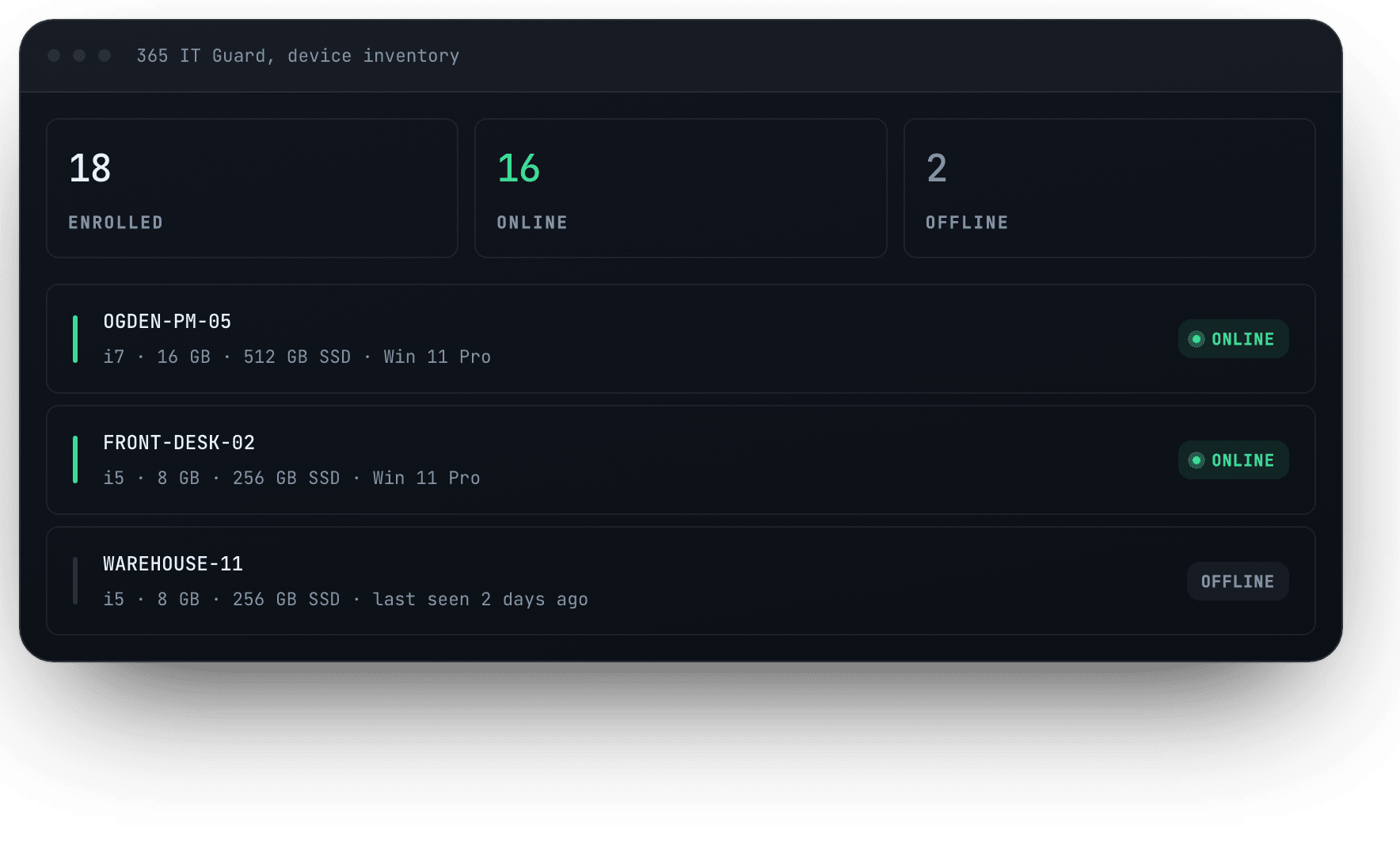
03Your staff
That's the whole rollout.
Copy your signup code from the portal and send it to your staff with the download link. Staff choose "Join your organization" and enter the code. They don't need their own account during the trial.
What is a signup code?
It's how your staff add their computers without you setting up an account for each person. Your business has one code. Send it to your staff with the download link, and they enter it when the app asks. The code doesn't expire and can be used as many times as you need. If it ends up somewhere it shouldn't, make a new one in the portal. The old one stops working, and computers that already joined stay connected. When everyone's set up, you can turn signups off.
A few tips
The code doesn't expire. Turn signups off when everyone's in. Making a new code doesn't disconnect anyone.
Each computer appears in your portal as it joins.
04What your staff see
What it looks like from the other side.
365 IT Guard is a real app the person at the computer opens, not something hiding in the background.
Health in plain words
How their computer is doing, without the jargon.
Fixes
The problems the app found, one click each.
The assistant, and help videos
They ask in their own words. When the app can't fix something, it gives them help links and short videos.
Every fix is clicked by the person at the computer. Nobody, including you or us, can run anything on a computer from somewhere else.
05A problem, start to finish
What actually happens when something goes wrong.
The realistic version, not a best case.
- The app may already list the problem
The Fixes page shows what it found, sorted by urgency.
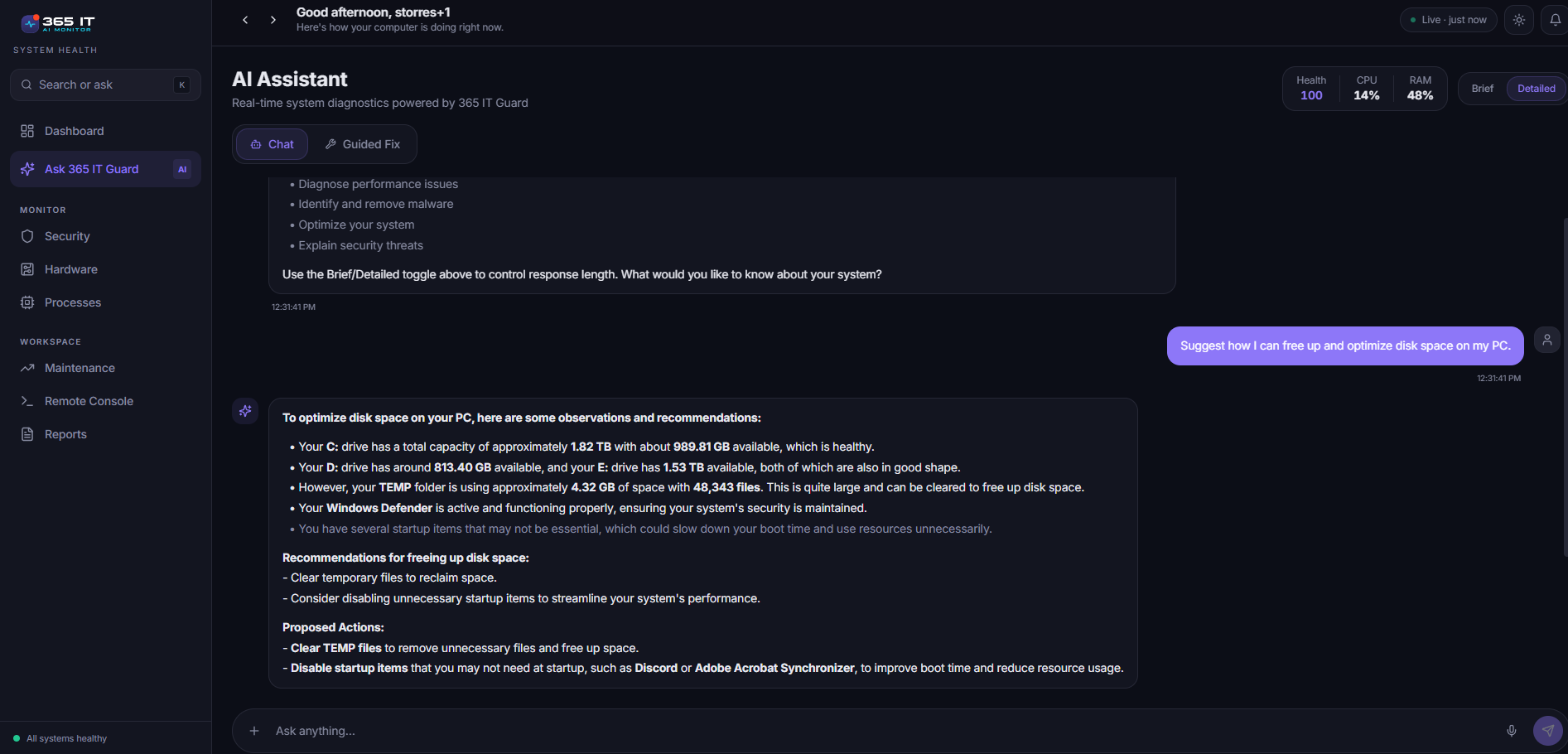
- They ask in their own words
No error code required, and no knowing the right term for the thing.
- The answer is about their computer
Not about computers in general.
- They click to fix it
Nothing changes until the person at the computer says yes.
- If that doesn't solve it
You already know which computer it is, and you can send a tech the computer's report.
06A normal week
What you check once things are running.
Open the portal once a week. If a computer needs attention, it's in red, with what's wrong and the fix.
What needs attention
Anything in red, with what's wrong and the fix.
Protection, at a glance
Whether each computer's antivirus and firewall are on.
Last seen, and Windows 10
A computer that hasn't been seen in a while is worth asking about. The portal also shows which computers are on Windows 10.
Today you check the portal yourself. A red card tells you which computer needs attention. Email alerts are on our roadmap.
07When someone leaves
When someone leaves.
Remove the computer in the portal and its spot is free for the next one.
08Offline
What happens when a computer goes offline.
The app still works on the computer, and the portal shows when it was last seen.
The portal shows the last 24 hours of CPU and memory for each computer, and keeps 14 days. Each computer keeps its own detailed history for up to 90 days, plus a weekly report. Health score, issues and online status in the portal show the current state only. Keeping history for those is on our roadmap.
09Underneath it
How it holds together.
- Checked on our servers
Our servers check every request on their own, so a modified app cannot request data outside its own business.
- Each business is kept separate
Access is limited to your own business, and each business's data is kept separate.
- Sign-in
You confirm your email when you create your account. Each time you sign in, we text a one-time code to your phone.
- Payment goes through Stripe
Checkout happens on Stripe's hosted page. Card details are handled by Stripe and never by us.
10FAQ
Setup questions.
What is a signup code?
It's how your staff add their computers without you setting up an account for each person. Your business has one code. Send it to your staff with the download link, and they enter it when the app asks. The code doesn't expire and can be used as many times as you need. If it ends up somewhere it shouldn't, make a new one in the portal. The old one stops working, and computers that already joined stay connected. When everyone's set up, you can turn signups off.
Do staff need admin rights?
No. No fix needs them. The only change that asks for administrator approval is turning the firewall on or off.
What happens when the trial ends?
If you haven't subscribed, the app locks on every computer and stops reporting. Nothing is deleted. Subscribe from the portal and everything picks up where it left off.
What if I uninstall it?
Uninstall it like any Windows program. Saved weekly reports stay in Documents until you delete them.
Can my staff see everyone else's computers?
No. Staff use the app on their own computer only.
Will it alert me when something breaks?
Today you check the portal yourself. A red card tells you which computer needs attention. Email alerts are on our roadmap.
What happens when someone leaves?
Remove the computer in the portal and its spot is free for the next one.
Every question on this site is answered in one place. Read the full FAQ.
Try it on one computer.
Install it on your own computer and see what it finds. That tells you more than any demo will.
14-day free trial, no credit card.
Administrators can sign in to the portal.