
For small business
Know what every computer in your business is doing. Without hiring IT.
A small app on each Windows PC fixes the everyday problems with one click, and shows you on one screen which computers are protected, healthy, or need attention.
Built for Windows. Windows 10 and 11.
14-day free trial, no credit card. US customers only for now.
Nothing changes until the person at the computer says yes.
- My computer is slow
- I am out of disk space
- Is my antivirus on?
- Why won't this website load?
01The problem
Sound familiar?
Nobody's job is "the computers," so it lands on the owner. It doesn't matter whether you run an office, an agency, or a small practice.
Today
- The front desk PC crawls on your busiest day and there's nobody to call
- You find out about a problem when someone can't work
- People come and go, and nobody's sure which laptops are still in use
- "Is every computer protected?" gets an "I think so"
With 365 IT Guard
- Most everyday problems take one click, by the person at the computer
- Anything that needs attention is in red, with what's wrong and the fix
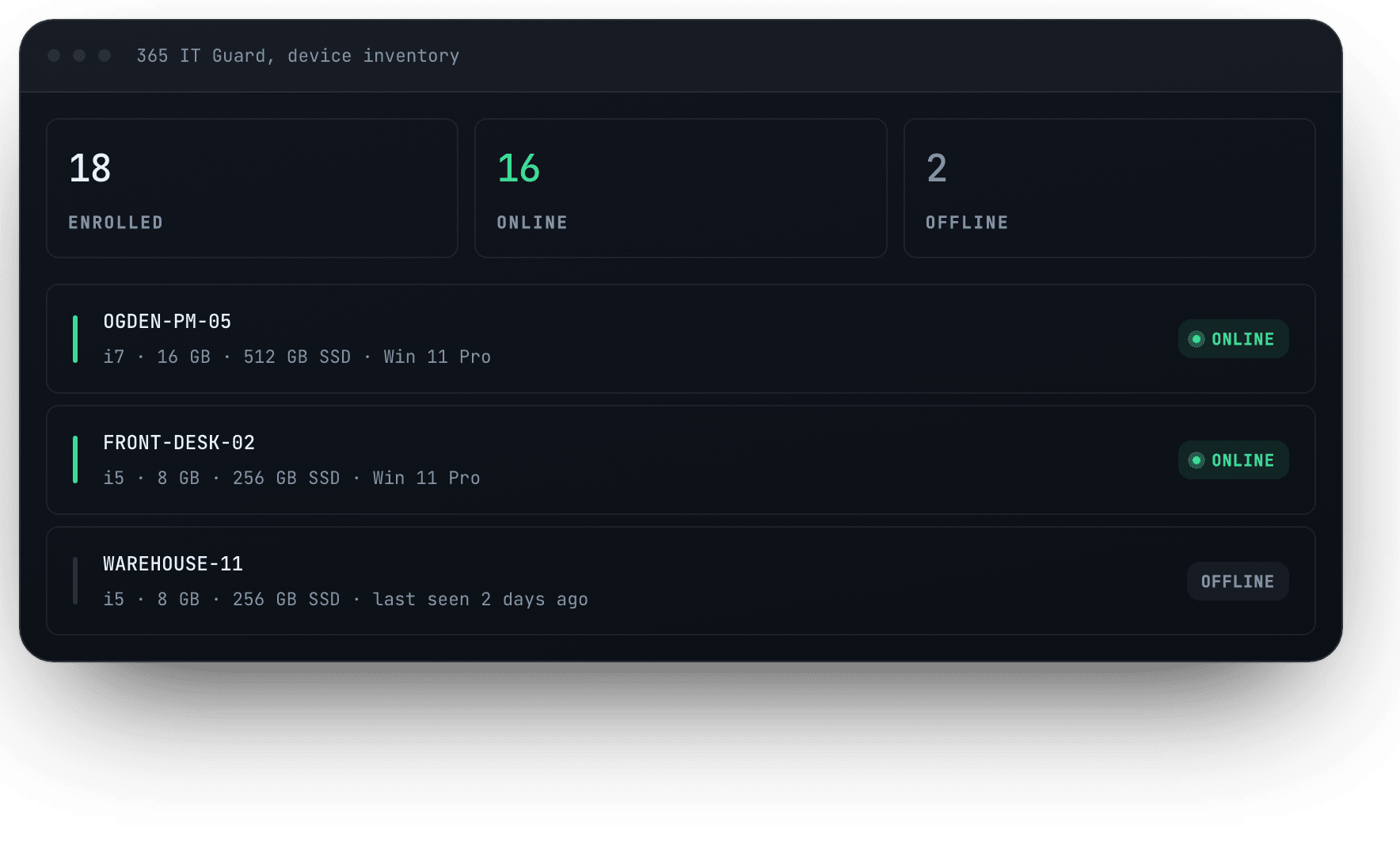
- Every computer is listed, with who uses it and when it was last seen
- One screen tells you whether each computer is protected
02What it does
Three jobs.
It fixes the everyday problems, shows which computers need attention, and checks every computer is protected.
Fixes the everyday problems with one click
One click to clear out temporary files, stop programs opening at sign-in, close programs that say "Not responding", bring back a frozen taskbar or Start menu, run a virus scan. Everyday fixes work without giving your staff admin rights.
Shows which computers need attention
Every computer gets a health score from 0 to 100. When something's wrong it's in red, with what's wrong and the fix.
Checks every computer is protected
It works with the antivirus you already have, whether that's Microsoft Defender or another product like ESET, and it checks the firewall too.
- Antivirus on and up to date, or not
- Firewall on, or not
- A protection card for every computer in the portal
- One-click Defender scans, if you use Defender
A normal week
Open the portal once a week. If a computer needs attention, it's in red, with what's wrong and the fix.
Office PCs and employees' own laptops
Office PCs and employees' own laptops are all on one business subscription. You assign each computer to the person who uses it.
What you see, and what you don't
You see: each computer's name, whether it's on and protected, its health score, memory and disk use, which programs use the most power, and which apps connect to the internet.
You never see: their files, their browsing history, their passwords, or their chats with the assistant.
They stay in control: nothing changes on their computer unless they click it.
The portal, and the app.
Two screens. The portal shows every computer in your business. The app shows the person at the computer how it's doing, and fixes what it can.
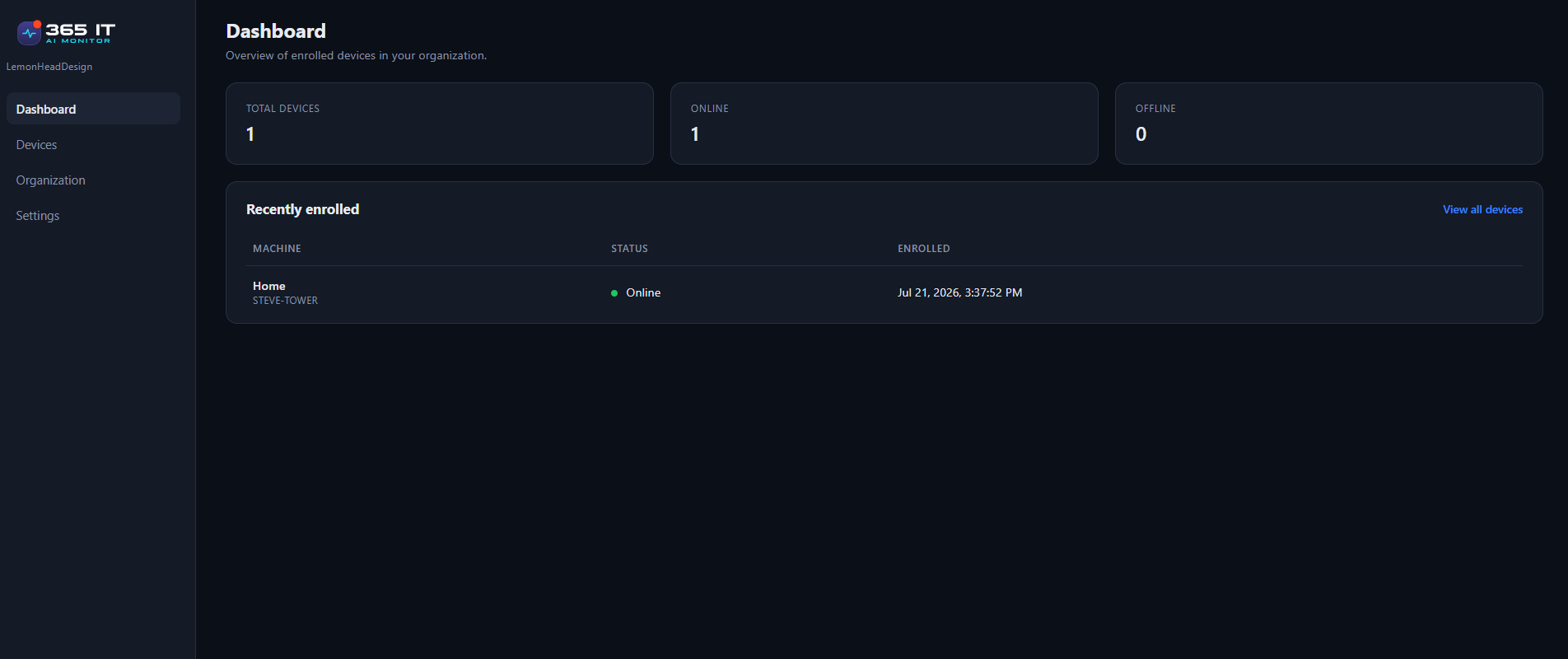
Every computer, its status, and when it was last seen.
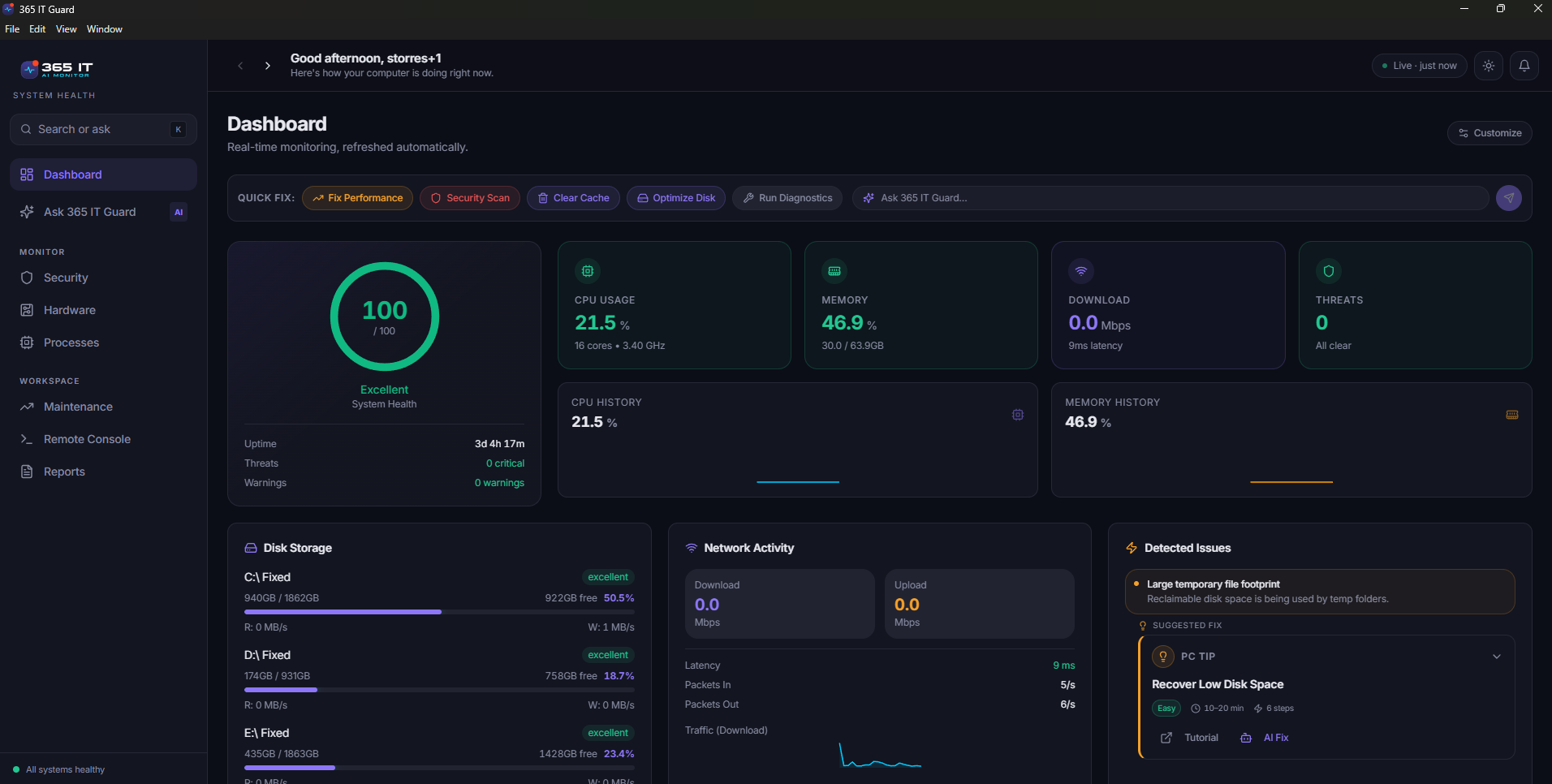
This computer's health, with the fixes and the assistant built in.
03How help works
We fix it for you, with your permission.
Everyday fixes work without giving your staff admin rights.
How help works
We fix it for you, with your permission. Most everyday problems take one click, and nothing changes until the person at the computer says yes.
If we can't fix it, we take you straight to it. One click opens the right Windows setting.
If it needs a person's hands, we show you how, step by step, with a short video from Microsoft or PC makers like Dell, HP and Lenovo.
Nobody, including you or us, can run anything on a computer from somewhere else.
Honest fit
- You want a person to do it for you. The app doesn't come with one.
- You want instant alerts. Not yet: today you check the portal yourself.
- You use Macs. It runs on Windows 10 and 11 only.
- You have a full IT department. They'll want tools built for them.
Built for owners, not IT managers.
For the owner or office manager of a business with 5 to 25 computers and no IT staff, and it works fine for more.
Wondering how this compares to what you do today? See where it fits.
04How it works
Set up your whole office in an afternoon.
Create your account
Download the app and run it. You confirm your email when you create your account, and each time you sign in, we text a one-time code to your phone.
Send your staff the signup code
Copy your signup code from the portal and send it to your staff with the download link. That's the whole rollout.
Open the portal
Each computer appears with its health score and protection status. Anything that needs attention is in red.
No server. No IT person. No admin rights for staff.
05Roadmap
What is shipping next.
The roadmap lists what we are building next, and what we are still deciding on. If something there is the reason you would buy, tell us and it moves up.
If one of these is the reason you would buy, say so. That is how the order gets set.
06Privacy
What the assistant sends.
The question goes to OpenAI, along with a summary of that PC's health so the answer fits the actual computer. We never send files, folder paths, browsing history or passwords. Chats aren't saved on our servers, and you (the admin) can't read your staff's chats. OpenAI doesn't use this data to train its models.
- Nothing happens remotely.
Every fix is clicked by the person at the computer, and nobody can start one from the portal.
- Sign-in.
You confirm your email when you create your account. Each time you sign in, we text a one-time code to your phone.
- Kept separate.
Each business's data is kept separate.
The full picture is on the security page.
We are in Beta, and we would rather say so.
There is no wall of reviews yet, and we are not going to manufacture one.
What there is: an app you can install on one computer in the next ten minutes, a portal that shows you which computers need attention, and an honest list of what is not built yet. Install it. If it does not tell you something useful about your computers on day one, do not buy it.
365 IT Guard
07Pricing
$7 a computer a month. $70 a year.
A 12-person office is $84 a month. Every feature is included, and there's a 14-day free trial with no credit card.
Monthly
Month to month.
- Every feature, on every computer
- One-click fixes and the assistant
- Protection check
- Portal with health score and issues
Two months free
Annual
The same plan, billed yearly.
- Everything in the monthly plan
- Two months free against monthly billing
- Month to month is always available instead
Have a question?
A real person reads these.
Tell us how many computers you have and what you do today when something breaks.
Answers before you install.
Every question on this site is answered in one place. Read the full FAQ.
Find out how your computers are really doing.
Install 365 IT Guard on one computer and see its health score, its protection status, and anything it can fix, in the next ten minutes.
14-day free trial, no credit card. Windows only.